How to Reduce Eye Strain When Working From Home
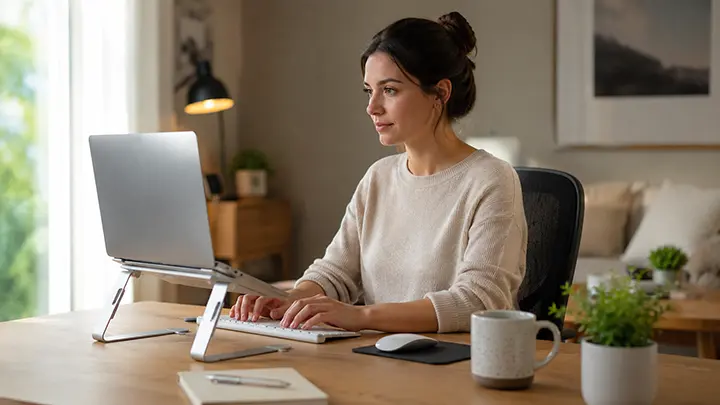
Remote work removed the commute, the office small talk, and the natural screen breaks that came with moving between meetings. It also created a quiet but widespread pattern of eye fatigue that most remote workers are managing one headache at a time.
If your eyes feel significantly worse at the end of a workday than they did when you worked in an office, you’re not imagining it. The shift to remote work changed several variables at once — more screen hours, less enforced movement, worse lighting, smaller screens, video calls replacing in-person meetings — and the cumulative effect on visual comfort is measurable.
The good news: most work-from-home eye strain is preventable. Not by working less, but by adjusting the conditions under which you work.
Why Remote Work Is Harder on Your Eyes Than Office Work
Before the solutions, it’s worth understanding what specifically makes home working harder on the visual system than a traditional office environment.
Longer unbroken screen sessions. In an office, movement between desks, meeting rooms, and common areas creates natural breaks from screen focus. At home, the screen is always the same screen, always in the same place. The physical transitions that used to interrupt close-range focus are gone.
Video calls replacing in-person meetings. A meeting in a room with colleagues is a visual break — you’re looking at faces at a distance, moving between eye contact and notes, not staring at a backlit screen. Video calls require sustained close-range screen focus for their entire duration, often with poor lighting and camera angles that create additional visual strain.
Worse lighting conditions. Office environments are typically designed with consistent overhead lighting calibrated to reduce screen glare. Home offices vary enormously — windows in the wrong position, overhead lights creating reflections, screens too bright or too dim relative to the ambient environment.
Smaller or multiple screens. Many remote workers use laptops without external monitors, working on screens that are smaller and often held closer than a properly positioned office monitor. Others use multiple monitors with different brightness settings, forcing the eyes to constantly re-adapt.
No ergonomic oversight. Office setups are often adjusted by facilities or IT teams to meet basic ergonomic standards. Home setups are whatever was available — kitchen tables, sofas, beds — with no systematic attention to screen height, distance, or angle.
The result is a visual environment that is, in most cases, less suited to eye health than a well-configured office — combined with more hours of exposure and fewer natural breaks.
The Most Common Work-From-Home Eye Strain Symptoms
If you experience several of these regularly by the end of a working day, digital eye strain from your home setup is likely the cause:
Eye fatigue and soreness — a heavy, aching sensation behind or around the eyes that builds through the day and peaks in the late afternoon.
Headaches — typically presenting around the temples, forehead, or behind the eyes, appearing after extended screen sessions or worsening through the day.
Blurred vision — temporary difficulty focusing during or after screen use, or a general softening of visual sharpness by evening.
Dry, irritated eyes — caused by reduced blink rate during screen focus. Blink rate drops from 15–20 per minute to as few as 5–7 during concentrated screen use, leading to faster tear film evaporation and surface dryness.
Difficulty refocusing — a lag when shifting attention from screen to objects across the room, or from one screen to another at a different distance.
Neck and shoulder tension — frequently co-occurring with eye strain when screen position causes forward head posture or looking up or down at a non-neutral angle.
For a complete breakdown of digital eye strain causes and mechanisms, see our full guide on digital eye strain symptoms and how to prevent them.
Monitor Distance: The Starting Point for Everything Else
If there is one adjustment that makes the most immediate difference to work-from-home eye strain, it’s monitor distance.
Eye doctors recommend positioning computer monitors at 50–70 cm from the eyes — roughly arm’s length. This is the distance at which the focusing muscles work at a comfortable level for sustained use. Closer than 50 cm, the accommodative effort increases significantly. Further than 70 cm, many people lean forward to read text, which defeats the purpose.
For laptop users working without an external monitor, the natural resting position of a laptop on a desk typically places the screen at 40–50 cm — closer than the recommended range, especially for smaller text. If your laptop screen is within arm’s reach and you’re not using an external display, you’re likely working closer than the recommended distance.
What to adjust:
Push the screen back until it’s at arm’s length. If text becomes harder to read at that distance, increase your font size rather than moving the screen closer — this is the correct order of adjustments. Zoom in on documents and browsers, increase system font size, and let the distance work for you.
For laptop users: a separate keyboard and mouse, with the laptop elevated on a stand at arm’s length, converts a problematic setup into a functional one. An external monitor placed at the correct distance is the most effective single ergonomic investment for remote workers with persistent eye strain.
Screen height matters too. The top of the monitor should be at or slightly below eye level, so you’re looking slightly downward at the screen. Looking up at a screen — common when a monitor is placed on a stack of books or a high shelf — keeps the eyes more open and increases evaporation of the tear film. Looking slightly down is the natural resting position for the eyes and reduces dry eye symptoms.
Laptop Use and Phone Use: The Close-Distance Problem
The 50–70 cm recommendation applies to desktop monitors and laptops on desks. But remote workers face an additional challenge that office workers typically don’t: screens migrate.
The laptop moves to the sofa. The phone comes out for quick checks between calls. The tablet is used in bed for evening reading that’s technically work-adjacent. Each of these contexts involves screens held closer than the recommended distance for sustained visual work.
Smartphone use is the most extreme case. Eye doctors recommend holding smartphones at 30–40 cm from the eyes. Most adults hold them at 18–25 cm — closer still when lying down or fatigued at the end of a workday. The same principles that apply to children’s phone use apply to adults — see our breakdown of how far phones should be held from the eyes for the underlying mechanics.
For remote workers who switch between computer work and phone work throughout the day, the cumulative accommodative load is substantially higher than either activity alone. The phone sessions that feel like brief breaks from the computer are, from the visual system’s perspective, additional close-range focus sessions at even shorter distances.
The same structural approach that helps with monitors applies to phones: increase font size, hold further away, and avoid phone use lying down. The challenge is that distance discipline doesn’t survive a long workday — by 6pm, the phone is back at 20 cm whether you intended it or not. This is where automatic distance monitoring earns its keep, because it catches the slip without requiring you to remember.
The 20-20-20 Rule for Remote Workers
The 20-20-20 rule — every 20 minutes, look at something 20 feet (6 metres) away for 20 seconds — is the most widely recommended intervention for screen-related eye fatigue, and it’s particularly relevant for remote workers whose natural break pattern has disappeared.
In an office, natural breaks happen: walking to a meeting, getting coffee, talking to a colleague across the room. These activities incidentally involve looking at things at varying distances, which provides the ciliary muscle recovery that the 20-20-20 rule formalises.
Working from home, none of these happen automatically. The 20-20-20 rule needs to be deliberate.
Making it work in a home office:
A recurring 20-minute timer is the most reliable implementation. Set it once at the start of the working day and let it run. When it fires, look out the window or across the room for 20 seconds before dismissing it — not at another screen.
For those who find timers disruptive during focused work: the natural break points of the Pomodoro technique (25-minute work blocks) are close enough that the break can serve double purpose — first 20 seconds of each break looking into the distance.
Working near a window helps: the presence of an outdoor view creates natural opportunities to glance into the distance during micro-pauses in typing or thinking, which approximates the 20-20-20 principle without deliberate effort.
Lighting: The Variable Most Remote Workers Ignore
Lighting is the most impactful environmental factor for eye strain after distance — and the one that home offices get most consistently wrong.
The core principle: your screen brightness should match your ambient lighting. A very bright screen in a dark room creates high contrast stress. A dim screen in bright sunlight is equally problematic. The goal is for the screen to look like a lit piece of paper — visible and clear, but not dramatically different in luminance from the surrounding environment.
Specific adjustments:
Window position. Ideally, windows should be to the side of your monitor, not in front of or behind it. A window behind you creates glare on the screen. A window in front of you forces your eyes to constantly manage the contrast between the bright window and the screen. A window to the side provides natural light without direct interference.
If repositioning isn’t possible, a matte screen protector reduces glare from windows and overhead lights, and makes a meaningful difference to visual comfort over a full workday.
Overhead lighting. Harsh overhead fluorescent lighting is associated with higher rates of eye strain than softer, diffuse lighting. If your home office uses a single overhead fixture, adding a desk lamp with a warm-spectrum bulb creates a more even, comfortable light environment.
Auto-brightness. Enable auto-brightness on all devices. Manual brightness set in the morning becomes wrong by the afternoon as ambient light changes. Auto-brightness adjusts continuously and removes one source of mismatch between screen and environment.
Evening and night work. Enable night mode or warm display settings if you work in the evening. Reducing blue light output after 7–8pm doesn’t eliminate eye strain from evening work, but it reduces the sleep disruption that compounds the following day’s eye fatigue — and tired eyes the next morning make the problem cumulative.
Video Call Fatigue: A Specific Problem With Specific Solutions
Video calls have created a category of eye strain that didn’t exist at scale before remote work. Sustained focus on a video grid of faces — typically at close screen distance, often with poor lighting, and with the added cognitive load of monitoring your own image — is more visually demanding than either a phone call or an in-person meeting.
Camera position. An external camera positioned at eye level allows a more natural gaze angle than a laptop camera looking up from desk level. Looking slightly down at the screen (monitor at or below eye level) is the correct position — a camera that sits at that height also captures you at a more flattering angle, which is a pragmatic incentive.
Gallery view vs. speaker view. Gallery view — showing all participants simultaneously as small thumbnails — requires more eye movement and concentration than speaker view, which shows one face at a full size. Switching to speaker view during long calls reduces the visual scanning effort.
Lighting your own face. Poor lighting on your end creates a high-contrast situation where your camera is trying to expose for a dark face against a bright background. This often results in a dim, hard-to-see image — causing other participants to look more closely at the screen. A simple ring light or desk lamp facing you (not behind you) solves this and incidentally reduces glare on your screen.
Off-camera breaks. In long calls, turning your camera off during portions where your contribution is passive reduces the self-monitoring demand and allows you to look away from the screen periodically without it being socially awkward.
Ergonomics Beyond the Screen
Eye strain in remote workers frequently co-occurs with neck and shoulder tension — not coincidentally. Poor posture and poor screen position cause each other.
When the screen is too low, people tilt their head down and round their shoulders. When it’s too far or too small, people lean forward, bringing their head closer to the screen and their eyes into a closer focal distance. When it’s too high, they tilt their head back and look upward — keeping the eyes wider open and increasing tear evaporation.
The correct configuration: screen at arm’s length, top of screen at or slightly below eye level, keyboard and mouse allowing elbows at roughly 90 degrees. This isn’t a luxury ergonomic setup — it’s the basic configuration that allows sustained computer work without cumulative strain on the visual and musculoskeletal systems simultaneously.
For remote workers spending six or more hours daily at a computer, the investment in a monitor arm (allows precise positioning), an adjustable desk chair, and an external keyboard and mouse pays for itself quickly in reduced discomfort and maintained productivity.
A Daily Routine for Remote Workers With Eye Strain
A practical structure that incorporates the most evidence-supported interventions without adding significant time or complexity to the working day:
Morning setup (2 minutes): Check monitor distance — arm’s length from seated position. Verify screen height — top at or slightly below eye level. Set recurring 20-minute timer. Enable auto-brightness.
During the workday: Follow the 20-20-20 rule — 20 seconds looking into the distance every 20 minutes. Use eye drops or artificial tears if your environment is dry. Blink consciously during video calls. Switch to speaker view for long meetings.
Phone use: Hold at 30–40 cm. Increase font size if you find yourself bringing the screen closer. Avoid phone use lying down. Treat phone sessions as additional close-range focus, not breaks from it.
End of day: Enable night mode or warm display if continuing to use screens after 7pm. Avoid screens in the hour before bed where possible — this is the single most impactful timing intervention for sleep quality and the following day’s visual fatigue.
You Don’t Have to Use Your Phone Less
Most advice about eye strain ends with the same recommendation: use screens less. For remote workers, this isn’t realistic — the screen is the job, and the phone is how the rest of life gets coordinated around it.
The more useful framing is that you don’t have to reduce phone use to protect your eyes. You have to change how you hold the phone. Distance is doing more of the work than duration. A two-hour phone session at 35 cm puts substantially less load on the focusing system than a one-hour session at 18 cm.
The challenge is that distance is a habit, and habits made under attention dissolve under fatigue. You hold the phone correctly for the first ten minutes, then the arm gets tired, the phone drifts in, and by the end of the workday it’s back at 20 cm without you noticing.
This is the gap an automatic distance monitor closes. iVisionGuard is a free Android app that uses the front camera as a distance sensor — when the phone is held closer than the safe threshold, it issues a brief alert and dims the screen. Each alert teaches the habit; within a few weeks the alerts become rare, because the safe distance becomes automatic. The camera works only as a sensor: frames are processed on the phone and never recorded.
It’s the same principle as a posture corrector for your eyes: a quiet reminder when you’ve drifted, until you stop drifting on your own.
Key Takeaways
- Remote work creates conditions less suited to eye health than office work — more screen hours, fewer natural breaks, worse lighting, and screens that migrate to sub-optimal positions
- Monitor distance of 50–70 cm (arm’s length) is the most impactful single adjustment for computer eye strain
- The 20-20-20 rule needs to be deliberate in a home office — the natural breaks that approximated it in an office environment no longer happen automatically
- Lighting should match screen brightness; windows to the side rather than front or back; auto-brightness enabled
- Video calls create specific additional strain — camera position, speaker view, and lighting adjustments meaningfully reduce it
- Phone use throughout the workday adds close-range focus load even when it feels like a break from the computer
- You don’t have to use your phone less — you have to hold it further away. Distance is doing more of the work than duration
Frequently Asked Questions
Why do my eyes hurt more working from home than in the office? Remote work typically means more unbroken screen time, worse lighting conditions, smaller or more poorly positioned screens, and the loss of natural movement-based breaks that previously interrupted close-range focus. The cumulative effect is more accommodative fatigue and more visual strain over the same number of working hours.
How far should my monitor be from my eyes when working from home? Eye doctors recommend 50–70 cm — roughly arm’s length. If text is hard to read at that distance, increase your font size and browser zoom rather than moving the screen closer. Screen height should place the top of the monitor at or slightly below eye level.
Do blue light glasses help with work-from-home eye strain? The evidence for blue light glasses specifically reducing eye strain is limited. The more consistent interventions are correct screen distance, the 20-20-20 rule, matched ambient lighting, and managing blink rate. Blue light glasses may help with sleep if you work in the evening, but they are not a substitute for the ergonomic adjustments that address the primary causes of eye strain.
How many hours of screen time is too much for working adults? There is no clear upper limit beyond which eye strain becomes unavoidable — it depends more on distance, lighting, and break frequency than total hours. Remote workers averaging 8–10 hours of screen time daily can significantly reduce eye strain through ergonomic adjustments and regular breaks, without reducing their working hours.
Can eye strain from remote work have lasting effects on my vision? Digital eye strain itself does not cause structural changes to adult eyes — symptoms are functional and reversible with rest and habit changes. However, sustained close-range work over years has been linked in some research to refractive changes, which is why distance habits matter beyond just daily comfort. We’ve covered the evidence in detail in our piece on whether smartphones can cause myopia. For ongoing or worsening symptoms, regular eye exams remain the most reliable safeguard.
iVisionGuard is a free Android app that monitors screen-to-face distance in real time — helping remote workers hold the phone at a healthy distance throughout the working day without thinking about it. Distance detection happens on the device, and no video is recorded. Download free on Google Play or learn more at ivisionguard.com.